> ## Documentation Index
> Fetch the complete documentation index at: https://bruno-a6972042-docs-api-docs-split-more-menu-ryan.mintlify.site/llms.txt
> Use this file to discover all available pages before exploring further.

# Configuring and Fetching secrets

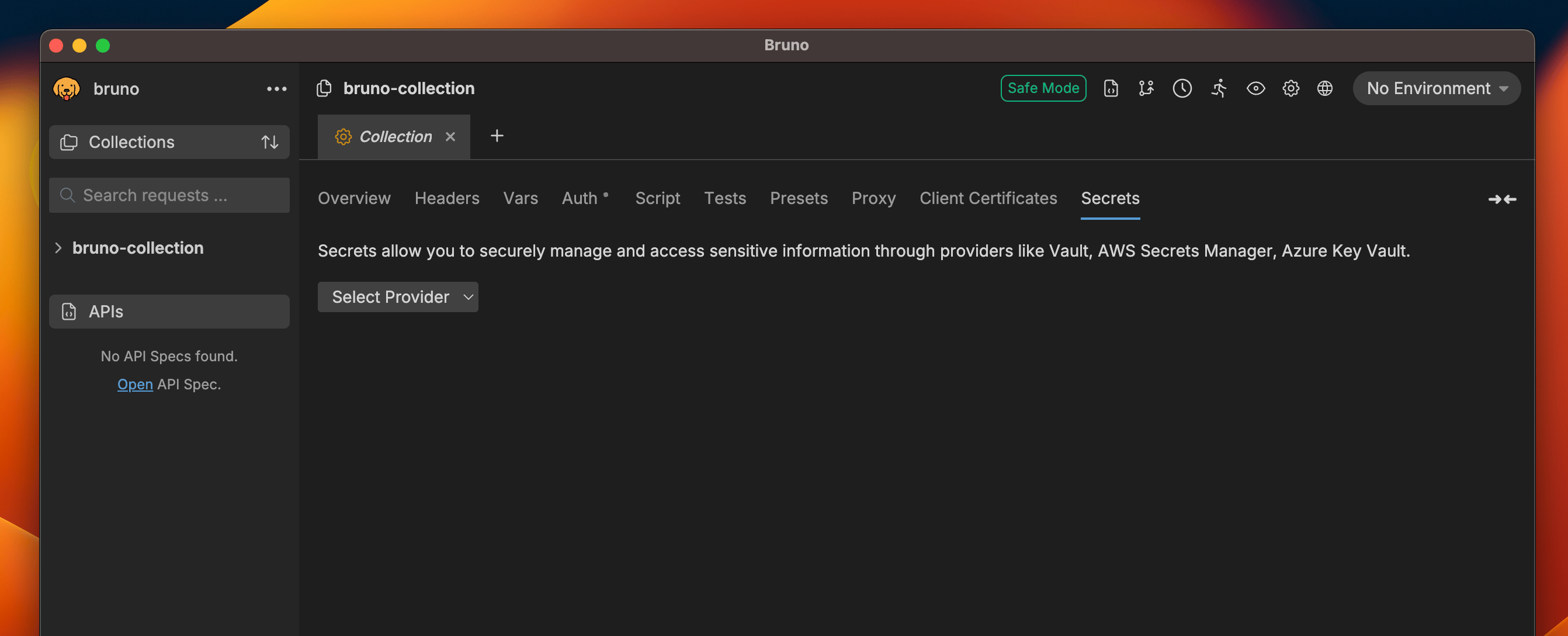
1. Go to **Collection Settings** and navigate to the **Secrets** section.
<img src="https://mintcdn.com/bruno-a6972042-docs-api-docs-split-more-menu-ryan/Wl-tVqCtAcO3vBXq/v2/images/screenshots/secret-variables/hashicorp-vault/config-and-fetching-secrets/1-select-provider.webp?fit=max&auto=format&n=Wl-tVqCtAcO3vBXq&q=85&s=6567ec48368d621f0bd593607f11fb39" alt="select-provider" width="2684" height="1088" data-path="v2/images/screenshots/secret-variables/hashicorp-vault/config-and-fetching-secrets/1-select-provider.webp" />

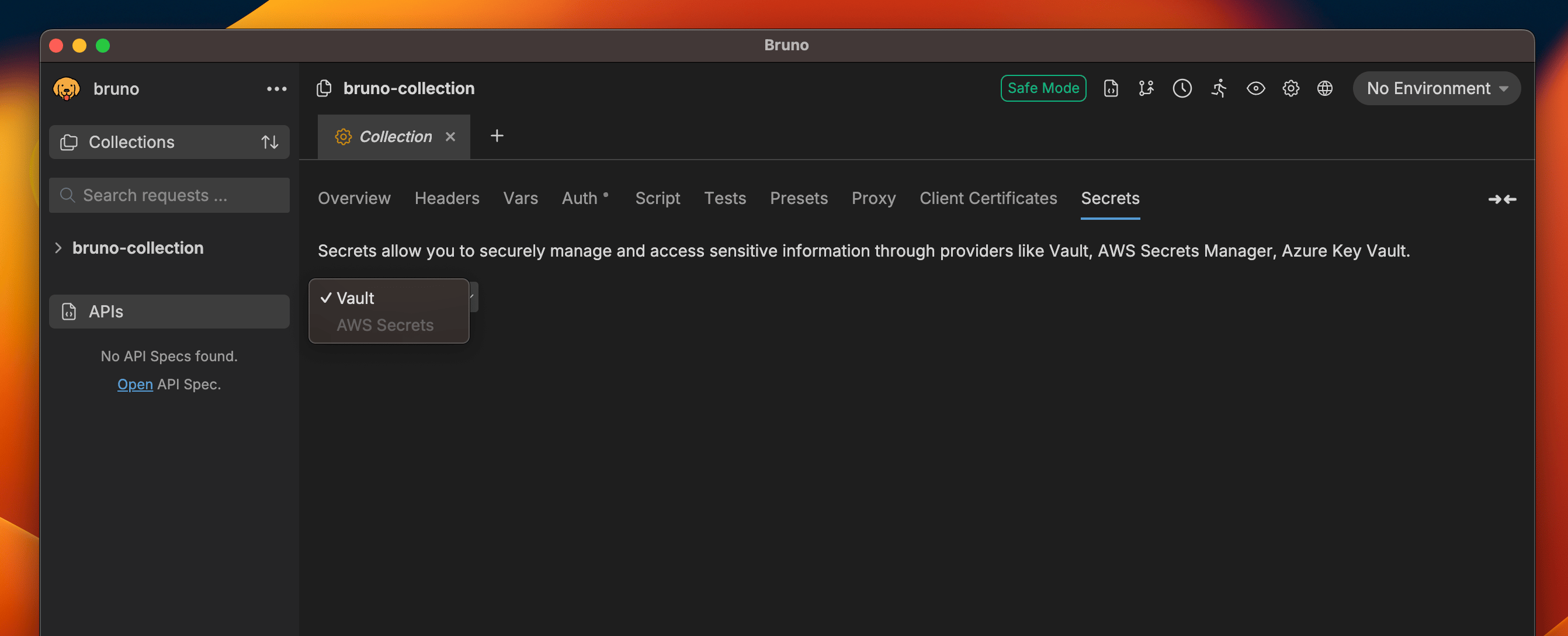
2. Select `Vault` as the provider.

<img src="https://mintcdn.com/bruno-a6972042-docs-api-docs-split-more-menu-ryan/Wl-tVqCtAcO3vBXq/v2/images/screenshots/secret-variables/hashicorp-vault/config-and-fetching-secrets/2-vault-selected.webp?fit=max&auto=format&n=Wl-tVqCtAcO3vBXq&q=85&s=b6ceb6d3c774119da15cb3a935b53e00" alt="vault-selected" width="2684" height="1088" data-path="v2/images/screenshots/secret-variables/hashicorp-vault/config-and-fetching-secrets/2-vault-selected.webp" />

3. Choose an environment if not already selected. (Secrets are environment-specific)

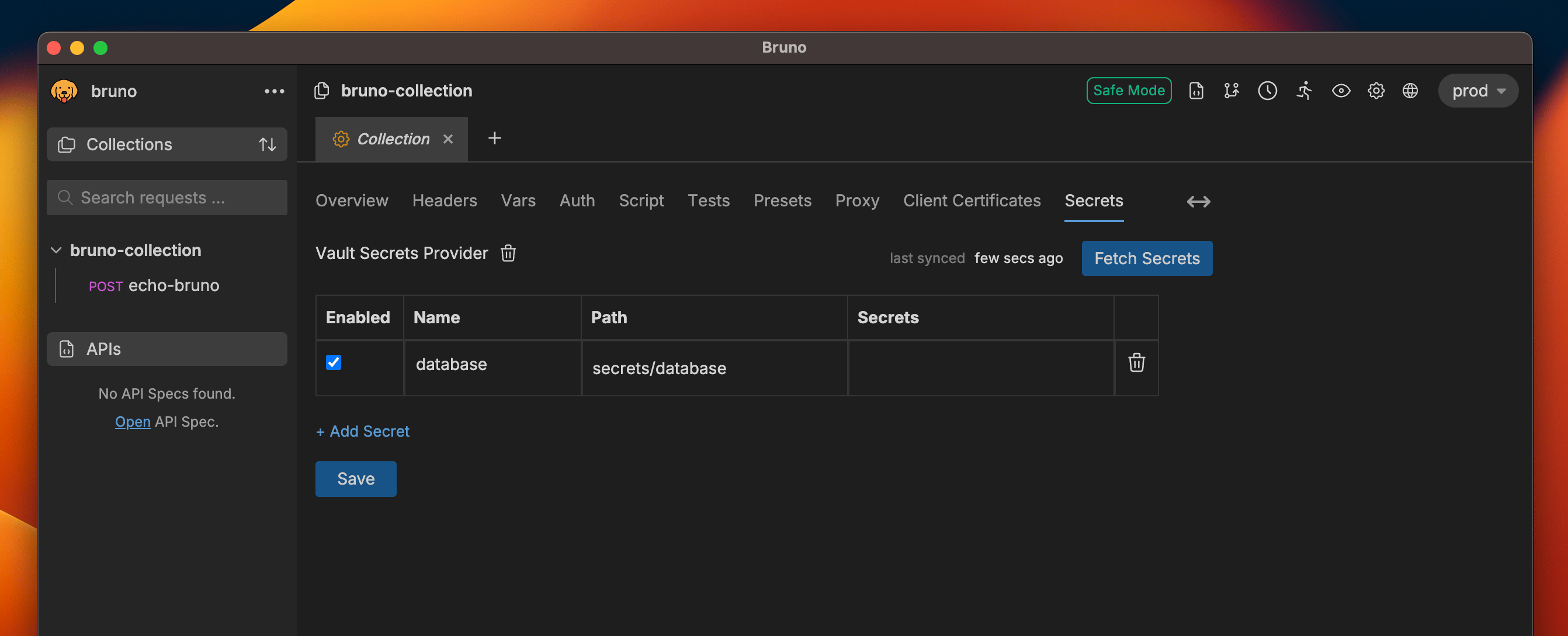
4. Add a new secret by clicking on the `+ Add Secret` button.
<img src="https://mintcdn.com/bruno-a6972042-docs-api-docs-split-more-menu-ryan/Wl-tVqCtAcO3vBXq/v2/images/screenshots/secret-variables/hashicorp-vault/config-and-fetching-secrets/3-add-secret.webp?fit=max&auto=format&n=Wl-tVqCtAcO3vBXq&q=85&s=eb2b795e3af1dbfd222821aec1e79db9" alt="add-secret" width="2684" height="1088" data-path="v2/images/screenshots/secret-variables/hashicorp-vault/config-and-fetching-secrets/3-add-secret.webp" />

5. Provide a name for the secret and specify the relative path to where the secret is stored in Vault.

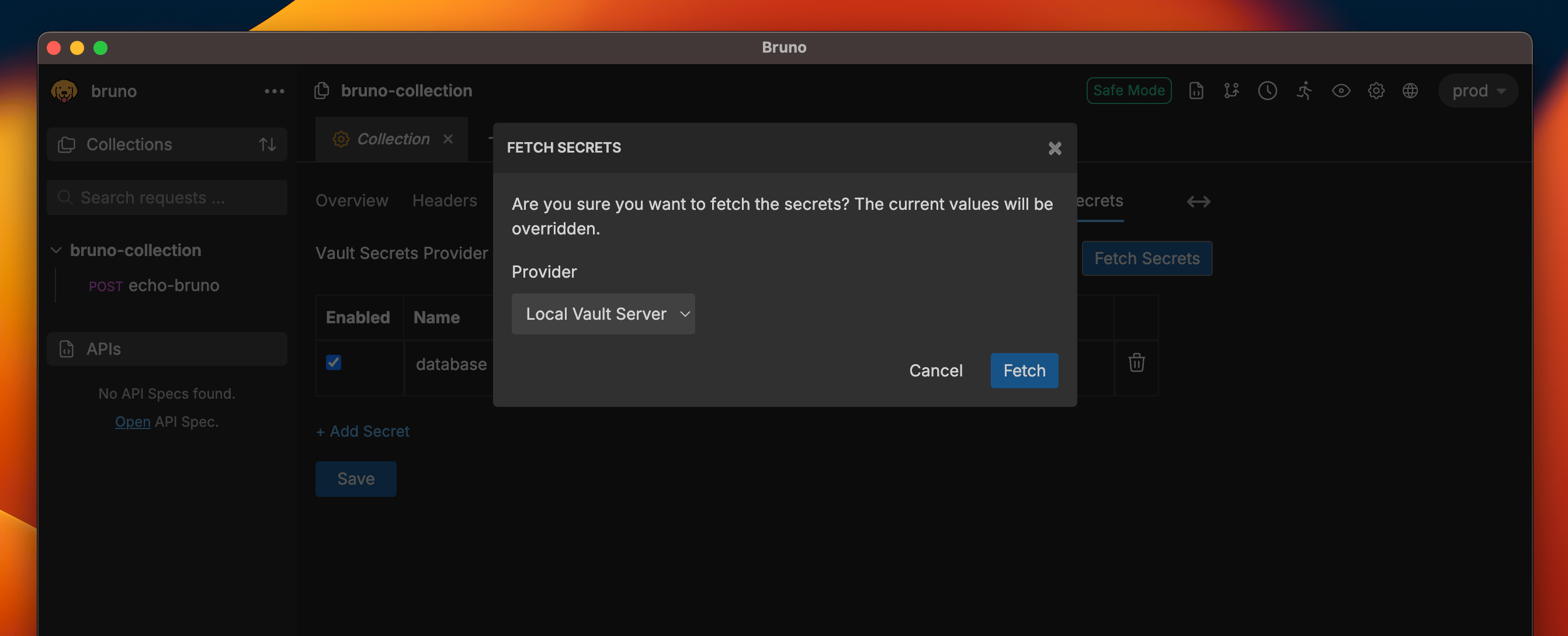
6. Click on the `Fetch Secrets` button on the top left corner, choose one of the secret providers, and click on the `Fetch` button.
<img src="https://mintcdn.com/bruno-a6972042-docs-api-docs-split-more-menu-ryan/Wl-tVqCtAcO3vBXq/v2/images/screenshots/secret-variables/hashicorp-vault/config-and-fetching-secrets/4-fetch-secrets.webp?fit=max&auto=format&n=Wl-tVqCtAcO3vBXq&q=85&s=93f830b0abae809e42d4442a8ea9d60e" alt="fetch-secrets" width="2684" height="1088" data-path="v2/images/screenshots/secret-variables/hashicorp-vault/config-and-fetching-secrets/4-fetch-secrets.webp" />

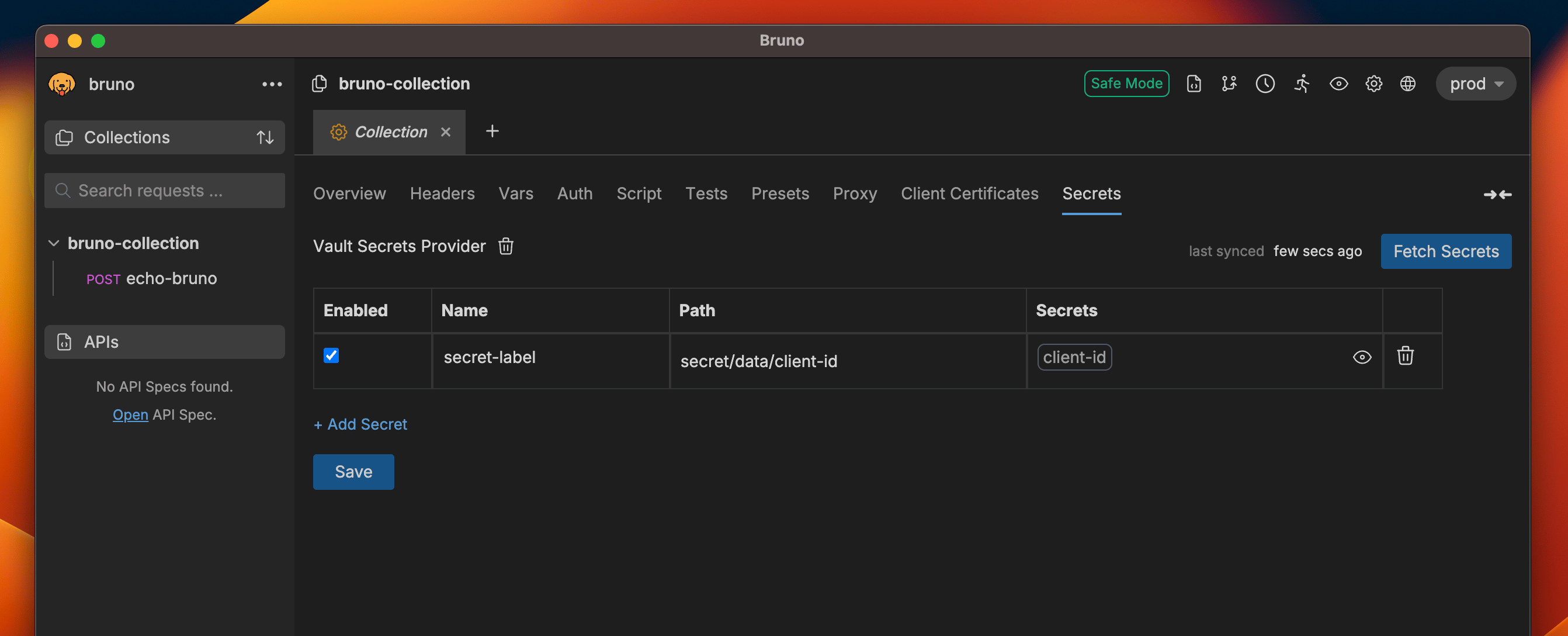
7. The fetched secrets will be displayed in the table along with their names and paths.
<img src="https://mintcdn.com/bruno-a6972042-docs-api-docs-split-more-menu-ryan/Wl-tVqCtAcO3vBXq/v2/images/screenshots/secret-variables/hashicorp-vault/config-and-fetching-secrets/5-get-valut-values.webp?fit=max&auto=format&n=Wl-tVqCtAcO3vBXq&q=85&s=440cb51fde0f68f1c2eed2f6b7b05e98" alt="fetched-secrets" width="2684" height="1088" data-path="v2/images/screenshots/secret-variables/hashicorp-vault/config-and-fetching-secrets/5-get-valut-values.webp" />